Hi guys,
Yesterday I was unpleasantly surprised with an error trying to view a list:
"Unable to display this Web Part. To troubleshoot the problem, open this Web page in a Microsoft SharePoint Foundation-compatible HTML editor such as Microsoft SharePoint Designer. If the problem persists, contact your Web server administrator.
Correlation ID: ....."
After drilling down the log, some investigation, coffee and googling, I found out that this problem is caused by a Windows update, to be more specific; KB2844286. It's a security update but it renders your list (and listview webparts) inaccessible if you've got any custom XSLT going on in there. Uninstalling the update and performing an IISreset on the WFE solved the issue.
Wednesday, July 17, 2013

Thursday, July 4, 2013
Implementing a simple custom Timer Job in SharePoint 2010
Simple implementation of an SPTimerJob which moves all files in a specified folder to another, prefixing the filenames with a timestamp. The interval is set to every minute.
1. Create a new empty SharePoint 2010 project
2. Create the following class (make sure the folders specified have been created:
4. Add an event receiver to it and define the activated/deactivated methods as follows:
6. Deploy and see the magic happen
1. Create a new empty SharePoint 2010 project
2. Create the following class (make sure the folders specified have been created:
using System;
using System.Collections.Generic;
using System.Linq;
using System.Text;
using Microsoft.SharePoint.Administration;
using System.IO;

namespace HotFolderJob
{
    public class FileMoverJob : SPJobDefinition
    {
        #region Constructors

        //Constructor
        public FileMoverJob() : base() { }

        //Constructor
        public FileMoverJob(string name, SPWebApplication webApp) :
            base(name, webApp, null, SPJobLockType.ContentDatabase) { this.Title = "Hotfolder Timer Job"; }

        #endregion Constructors

        #region Methods - Overridden

        public override void Execute(Guid targetInstanceId)
        {
            const string sourcePath = @"C:\TimerJob\DropFolder";
            const string targetPath = @"C:\TimerJob\TargetFolder";

            if (System.IO.Directory.Exists(sourcePath))
            {
                string[] fullPathFiles = System.IO.Directory.GetFiles(sourcePath);

                foreach (string fullPathfile in fullPathFiles)
                {
                    var originalFileName = Path.GetFileName(fullPathfile);
                    var destFile = Path.Combine(targetPath, (string.Format("{0:yyMMdd_Hmmss}_", DateTime.Now) + originalFileName));
                    File.Move(fullPathfile, destFile);
                    //File.Copy(fullPathfile, destFile);
                }
            }

        }

        #endregion Methods - Overridden
    }
}
3. Add a feature, name it as you please
4. Add an event receiver to it and define the activated/deactivated methods as follows:
using System;
using System.Runtime.InteropServices;
using System.Security.Permissions;
using Microsoft.SharePoint;
using Microsoft.SharePoint.Security;
using Microsoft.SharePoint.Administration;

namespace HotFolderJob.Features.HotfolderFeature
{
    [Guid("a2bb921d-dda5-4f0c-923c-da8004a4b09a")]
    public class HotfolderFeatureEventReceiver : SPFeatureReceiver
    {
        const string JOB_NAME = "HotFolderJob";

        public override void FeatureActivated(SPFeatureReceiverProperties properties)
        {
            SPSite site = properties.Feature.Parent as SPSite;

            foreach (SPJobDefinition job in site.WebApplication.JobDefinitions)
            {
                if (job.Name == JOB_NAME)
                    job.Delete();
            }

            FileMoverJob fileMoverJob = new FileMoverJob(JOB_NAME, site.WebApplication);
            SPMinuteSchedule schedule = new SPMinuteSchedule();
            schedule.BeginSecond = 0;
            schedule.EndSecond = 59;
            schedule.Interval = 1;
            fileMoverJob.Schedule = schedule;
            fileMoverJob.Update();

        }
        public override void FeatureDeactivating(SPFeatureReceiverProperties properties)
        {
            SPSite site = properties.Feature.Parent as SPSite;

            foreach (SPJobDefinition job in site.WebApplication.JobDefinitions)
            {
                if (job.Name == JOB_NAME)
                    job.Delete();
            }

        }

        //public override void FeatureInstalled(SPFeatureReceiverProperties properties)
        //{
        //}

        //public override void FeatureUninstalling(SPFeatureReceiverProperties properties)
        //{
        //}

        //public override void FeatureUpgrading(SPFeatureReceiverProperties properties, string upgradeActionName, System.Collections.Generic.IDictionary<string, string> parameters)
        //{
        //}
    }
}
5. Set the feature scope to Site (applies for this example)
6. Deploy and see the magic happen
Thursday, May 30, 2013
How to determine if an assembly is compiled as 32-bit or 64-bit
1. Go to VS Command Prompt
2. Execute the following: "dumpbin /headers mydll.dll" (of course replacing 'mydll.dll' with your assembly filename
3. Check the FILE HEADER VALUES and look for the value behind machine (x64 = 64-bit and x86 = 32-bit)
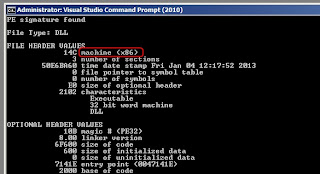
2. Execute the following: "dumpbin /headers mydll.dll" (of course replacing 'mydll.dll' with your assembly filename
3. Check the FILE HEADER VALUES and look for the value behind machine (x64 = 64-bit and x86 = 32-bit)

Wednesday, April 17, 2013
XMLNodeReader problem: The specified type was not recognized
// Solves the "The specified type was not recognized: name='##', namespace='##', at ..."
    // Came across this when trying to serialize an object of a custom type
    // It is caused due to a missing namespace reference (for some reason, the LookupNamespace method in the reader
    // does not return a string from the NameTable)
    public class XmlNodeReader2 : XmlNodeReader
    {
        public XmlNodeReader2(XmlNode node)
            : base(node)
        {
        }

        public override string LookupNamespace(string prefix)
        {
            return NameTable.Add(base.LookupNamespace(prefix));
        }


    }
source:http://coderstuff.blogspot.nl/2005/10/xmlserializer-bug-when-xsitype-is-used.html
Tuesday, February 19, 2013
Retrieving a resource key in a custom LayoutsPageBase page used in SP2010
1. Create the following property in your aspx.cs file:
2. Create the following method which will return the requested value stored in the .resx file by looking up the resource key
3. Good to go. Say you would need to populate a label in the Page_Load event with a string stored in the resources file with a key called 'MyLabelText'; you can then achieve this as follows:
protected Type ResourceType
{
     get
     {
          return typeof(MyResources); // replace 'MyResources' with your own resources file
     }
}
2. Create the following method which will return the requested value stored in the .resx file by looking up the resource key
protected string GetResourceString(Type resourceType, string resourceKey)
{
     return SPUtility.GetLocalizedString(string.Format("$Resources:{0}, {1}", resourceType.Name, resourceKey), resourceType.FullName, getLanguage);
}
3. Good to go. Say you would need to populate a label in the Page_Load event with a string stored in the resources file with a key called 'MyLabelText'; you can then achieve this as follows:
protected void Page_Load(object sender, EventArgs e)
{
     lblMyLabel.Text = GetSourceString(ResourceType, "MyLabelText");
}
Thursday, February 14, 2013
How to refresh parent page after closing a SP.UI.ModalDialog
var options = {
url:'/_layouts/YourAspx/YourPage.aspx',
title: 'Your Application Page Title',
allowMaximize: false,
showClose: true,
width: 700,
height: 260,
dialogReturnValueCallback: RefreshOnDialogClose
};
SP.UI.ModalDialog.showModalDialog(options);
Key here is the callback function; set it to RefreshOnDialogClose. Dead simple ;-)
url:'/_layouts/YourAspx/YourPage.aspx',
title: 'Your Application Page Title',
allowMaximize: false,
showClose: true,
width: 700,
height: 260,
dialogReturnValueCallback: RefreshOnDialogClose
};
SP.UI.ModalDialog.showModalDialog(options);
Key here is the callback function; set it to RefreshOnDialogClose. Dead simple ;-)
Monday, December 3, 2012
How to display live server side processing/messages in a browser
How to display live server side processing/messages in browser.
Use this in case the webpart/application invokes a long running processes. This way the user will continuously be updated on the progression of code execution. In my particular case I'm using a textbox to pass messages onto but feel free to replace it with any other type of control, such as a progression bar. You can make it as fancy as you want, sky's the limit. The trick is to create an iframe, in which you embed the application page that actually calls the long running process. So you'll need a few things here
- A parent .aspx page with a textbox ('txtLogs')
- An 'child' .aspx page ('LongRunningOp.aspx') which will execute the code. The page itself will not contain any controls, just code behind
- An iframe to embed that child .aspx within the parent page
- An update function to update the textbox, which will be called through the child .aspx page
Creating the iframe will be accomplished by using the following piece of code
function BeginLongRunningOp() {
var iframe = document.createElement("iframe");
// set the source to the .aspx, in this example it can be found in the layouts folder of the 14
// hyve as i created this for a SP2010 webpart
iframe.src = "/_layouts/CodingNCrap/LongRunningOp.aspx";
iframe.style.display = "none";
document.body.appendChild(iframe);
}
Calling this function from the parent page will open the child page and start the execution. You will also need an additional function to update the textbox as code is execution:
function UpdateProgress(Message) {
var logWindow = document.getElementById('<%= txtLogs.ClientID %>');
logWindow.value = logWindow.value + Message;
}
Last thing needed to make this work is to go to the code of the child .aspx page and add the following line to your method that will make the update:
protected void UpdateProgress(string Message)
{
try
{
Response.Write(String.Format("< script>parent.UpdateProgress({0});< / script>", Message));
}
catch (Exception exc)
{
// your exception handling logics here
}
}
Use this in case the webpart/application invokes a long running processes. This way the user will continuously be updated on the progression of code execution. In my particular case I'm using a textbox to pass messages onto but feel free to replace it with any other type of control, such as a progression bar. You can make it as fancy as you want, sky's the limit. The trick is to create an iframe, in which you embed the application page that actually calls the long running process. So you'll need a few things here
- A parent .aspx page with a textbox ('txtLogs')
- An 'child' .aspx page ('LongRunningOp.aspx') which will execute the code. The page itself will not contain any controls, just code behind
- An iframe to embed that child .aspx within the parent page
- An update function to update the textbox, which will be called through the child .aspx page
Creating the iframe will be accomplished by using the following piece of code
function BeginLongRunningOp() {
var iframe = document.createElement("iframe");
// set the source to the .aspx, in this example it can be found in the layouts folder of the 14
// hyve as i created this for a SP2010 webpart
iframe.src = "/_layouts/CodingNCrap/LongRunningOp.aspx";
iframe.style.display = "none";
document.body.appendChild(iframe);
}
Calling this function from the parent page will open the child page and start the execution. You will also need an additional function to update the textbox as code is execution:
function UpdateProgress(Message) {
var logWindow = document.getElementById('<%= txtLogs.ClientID %>');
logWindow.value = logWindow.value + Message;
}
Last thing needed to make this work is to go to the code of the child .aspx page and add the following line to your method that will make the update:
protected void UpdateProgress(string Message)
{
try
{
Response.Write(String.Format("< script>parent.UpdateProgress({0});< / script>", Message));
}
catch (Exception exc)
{
// your exception handling logics here
}
}
Subscribe to:
Posts (Atom)